Apple’s macOS is renowned for its sleek design and intuitive interface, but its mouse customization options often leave users wanting more. Default settings limit users to basic adjustments like tracking speed and scroll direction, which can feel restrictive for those with multi-button mice or specialized workflows. Enter SteerMouse, a third-party utility that revolutionizes mouse control on Mac, offering extensive personalization for USB and Bluetooth devices.
Developed by Plentycom Systems since 2005, SteerMouse empowers users to tailor their mouse experience far beyond macOS’s capabilities. From assigning complex shortcuts to buttons to fine-tuning cursor behavior, it caters to professionals, creatives, and accessibility-focused users. Priced at $19.99 with a lifetime license, it’s a compelling alternative for those seeking enhanced functionality without hardware limitations.
This article compares SteerMouse to macOS’s default settings, highlighting its superior customization, practical applications, and benefits. Whether you’re a programmer streamlining code navigation or a designer optimizing creative tools, SteerMouse transforms your mouse into a productivity powerhouse. Let’s explore why it outshines Apple’s native controls.
Default macOS Mouse Settings
Apple’s mouse settings, accessible via System Settings, prioritize simplicity but lack depth. Users can adjust tracking speed, scroll direction, and basic click functions, primarily designed for Apple’s Magic Mouse and Trackpad. These settings fall short for third-party mice with multiple buttons or advanced features.
Tracking Speed Limitations
macOS offers a slider for cursor speed, but it lacks granular control. Users cannot adjust acceleration curves or sensitivity independently, which hinders precision for tasks like graphic design or gaming. This one-size-fits-all approach often feels inadequate for power users.
Scroll Direction Constraints
The “Natural Scrolling” option reverses scroll direction, but macOS provides no fine-tuning for scroll speed or acceleration. This limits efficiency when navigating long documents or web pages, especially for users with high-DPI mice or trackballs requiring customized scrolling behavior.
Lack of Button Customization
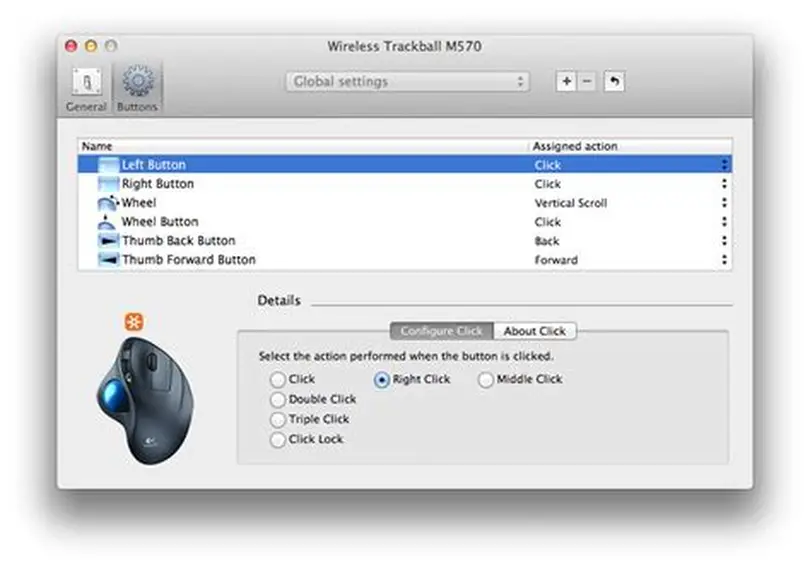
Default settings don’t support remapping extra buttons on third-party mice. Users are restricted to basic left/right clicks, leaving additional buttons on devices like Logitech or Razer mice underutilized. This gap frustrates those needing tailored shortcuts for productivity.
Core Features of SteerMouse
SteerMouse offers a robust suite of tools that surpass macOS’s limitations, enabling users to unlock their mouse’s full potential. It supports up to 24 actions per button, precise cursor adjustments, and app-specific profiles, making it ideal for diverse workflows.
Advanced Button Mapping
- Chording System: Combine buttons with modifiers (Command, Shift) for complex commands.
- Keyboard Shortcuts: Assign multi-key sequences to single buttons for efficiency.
- System Actions: Map navigation, Mission Control, or media playback to buttons.
- File/URL Launching: Open specific files or websites with a click.
- Click Variations: Enable double-click, click-lock, or drag for specialized tasks.
Precision Cursor Control
SteerMouse allows detailed cursor adjustments, including sensitivity and acceleration curves. Its cursor snapping feature moves the pointer to predefined positions, like dialog buttons, with optional auto-click. This precision is invaluable for design and technical tasks requiring accuracy.
Enhanced Scroll and Zoom
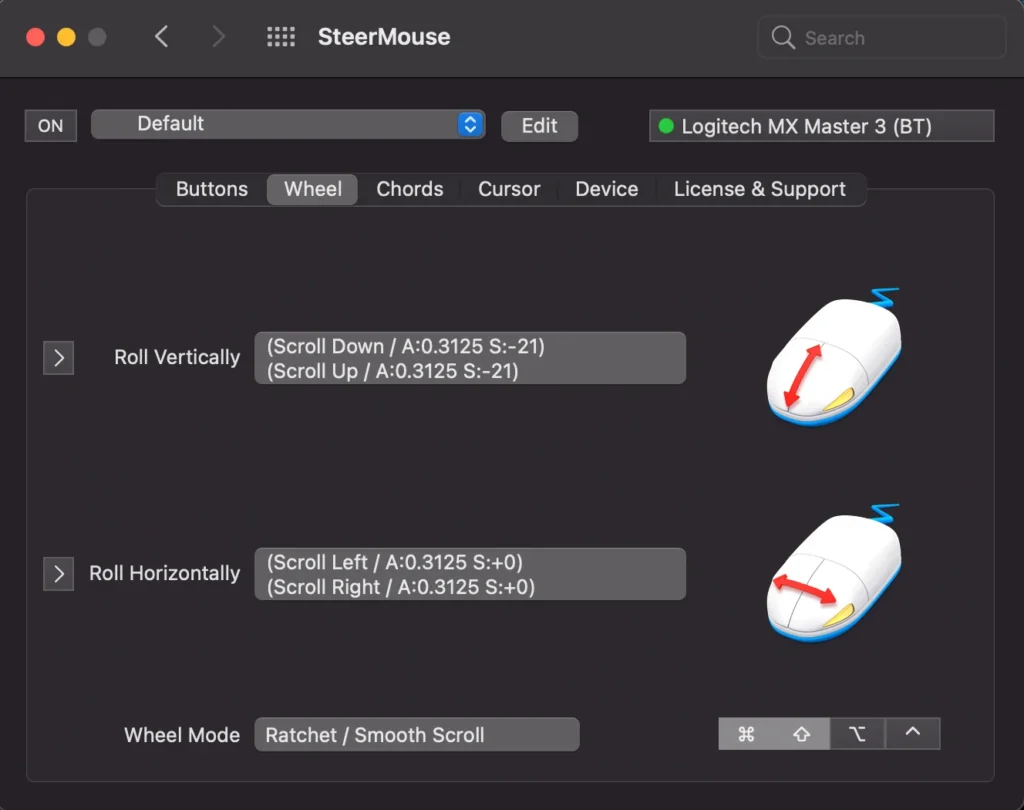
- Adjustable Scroll Sensitivity: Fine-tune vertical/horizontal scrolling for speed.
- Auto Scroll Feature: Enable hands-free scrolling for lengthy content.
- Trackball Compatibility: Convert trackball motion into scrolling for ergonomics.
- Zoom Capabilities: Simulate pinch gestures or trigger screen magnification.
- Acceleration Options: Speed up scrolling for faster document navigation.
Productivity Benefits of SteerMouse
SteerMouse significantly boosts efficiency by tailoring mouse behavior to specific tasks. Unlike macOS’s generic controls, it adapts to individual workflows, reducing repetitive actions and keyboard dependency for professionals and casual users alike.
Streamlining Professional Tasks
Programmers assign coding shortcuts, like code folding or debugging steps, to mouse buttons, minimizing keyboard use. Office workers map app-switching or copy-paste functions, speeding up multitasking. This customization can reduce task times by 20-30% in repetitive workflows.
Optimizing Creative Workflows
Designers map tools like the eyedropper or undo in Adobe apps to side buttons, accelerating creative processes. Video editors assign timeline scrubbing to the scroll wheel, enhancing precision. These tailored controls save seconds per action, compounding over long projects.
Supporting Multitasking
SteerMouse’s app-specific profiles allow different button assignments for each application. For example, Safari can have navigation shortcuts, while Photoshop uses tool-selection buttons. This seamless switching enhances multitasking without constant reconfiguration.
Practical Applications Across Use Cases
SteerMouse’s versatility makes it a game-changer for various Mac users, from gamers to accessibility-focused individuals. It transforms generic mice into specialized tools, addressing needs that macOS’s defaults cannot meet.
Gaming Enhancements
- In-Game Actions: Remap buttons to mimic controller inputs for Mac games.
- Quick Commands: Assign macros for complex gaming sequences.
- Navigation Ease: Map forward/back buttons for menu navigation.
- Precision Aiming: Adjust cursor sensitivity for accurate targeting.
- Profile Switching: Create game-specific profiles for different titles.
Accessibility Improvements
SteerMouse’s hands-free scrolling and cursor snapping aid users with motor challenges, reducing physical strain. Zoom features, like screen magnification, enhance visibility for visually impaired users, making Mac more inclusive compared to native controls.
Creative and Educational Uses
Designers and editors benefit from tool-specific button assignments, while educators map presentation controls for slides. SteerMouse’s flexibility ensures mice align with niche tasks, unlike macOS’s rigid settings, which lack such adaptability.
Installation and Configuration Process
Setting up SteerMouse is straightforward, with an intuitive interface for customization. Compatible with macOS 10.13 and later, it supports most USB/Bluetooth mice, excluding Apple’s proprietary devices. Here’s how to get started.
Downloading and Installing
Download SteerMouse from its official website, offering a 30-day trial. Install the app and grant macOS accessibility permissions to enable button monitoring. Unlike older versions, it runs as a standalone app, not within System Settings.
Configuring Mouse Settings
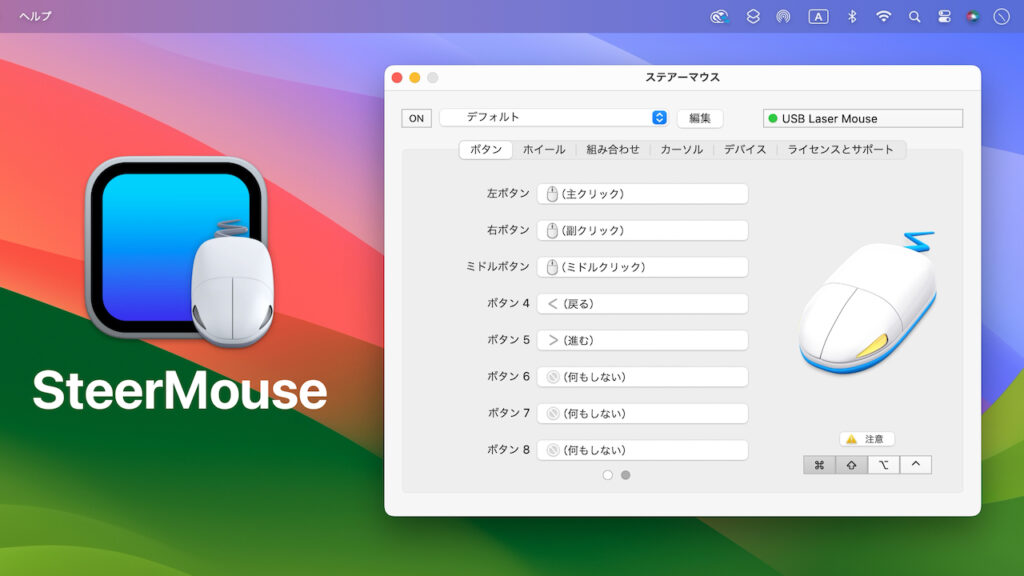
Launch SteerMouse to access tabs for buttons, cursor, and scroll. Select your mouse, then assign actions via dropdowns, testing in real-time. Save profiles to switch configurations easily, ensuring a seamless setup experience.
Creating App-Specific Profiles
Add apps to SteerMouse’s list to create tailored profiles. For instance, assign different functions for Xcode versus Chrome. This feature ensures context-specific controls, enhancing efficiency without manual adjustments, unlike macOS’s uniform settings.
SteerMouse vs. macOS: A Direct Comparison
SteerMouse outshines macOS’s default settings in customization, performance, and versatility. While Apple’s controls prioritize simplicity, SteerMouse delivers advanced functionality, making it the preferred choice for power users and those with specialized needs.
Customization Depth
- Button Remapping: SteerMouse supports complex chording; macOS offers none.
- Cursor Precision: SteerMouse’s sensitivity/acceleration trumps macOS’s basic slider.
- Scroll Flexibility: SteerMouse adjusts scroll behavior; macOS is limited to direction.
- App-Specific Profiles: SteerMouse enables per-app settings; macOS applies universal controls.
- Trackball Support: SteerMouse emulates scrolling; macOS lacks this feature.
Performance and Stability
SteerMouse uses minimal CPU/RAM, unlike bloated manufacturer software. Its 20-year development ensures stability, with updates for new macOS versions like Sonoma. Users report fewer crashes compared to alternatives, contrasting macOS’s reliable but basic controls.
Cost vs. Value
macOS settings are free but limited, while SteerMouse’s $19.99 lifetime license offers extensive features. The 30-day trial lets users test its value, making it a worthwhile investment for those needing advanced mouse control.
FAQs
Is SteerMouse compatible with all mice?
SteerMouse supports most USB and Bluetooth mice, except Apple’s Magic Mouse and Trackpad due to proprietary gestures. Brands like Logitech, Razer, and generic devices work seamlessly with its customization features.
How does SteerMouse improve productivity?
By mapping shortcuts and app-specific profiles, SteerMouse reduces keyboard reliance and streamlines tasks. Users report 20-30% faster workflows in coding, design, and office tasks compared to macOS’s basic controls.
Is SteerMouse worth $19.99?
SteerMouse’s lifetime license, free minor updates, and 30-day trial make it a cost-effective choice for power users. Its advanced customization surpasses macOS, offering significant value for tailored workflows.
Does SteerMouse work with macOS Sonoma?
Yes, SteerMouse receives regular updates for compatibility with macOS Sonoma and beyond. Check the official website for the latest version to ensure optimal performance and feature support.
Conclusion
SteerMouse surpasses default macOS settings, offering unparalleled customization for mouse buttons, cursor precision, and scrolling. Its app-specific profiles, lightweight design, and stability make it ideal for professionals, creatives, gamers, and those with accessibility needs. While macOS provides basic functionality, SteerMouse transforms any mouse into a tailored tool, boosting efficiency and comfort. For Mac users seeking enhanced control, SteerMouse is a clear winner.