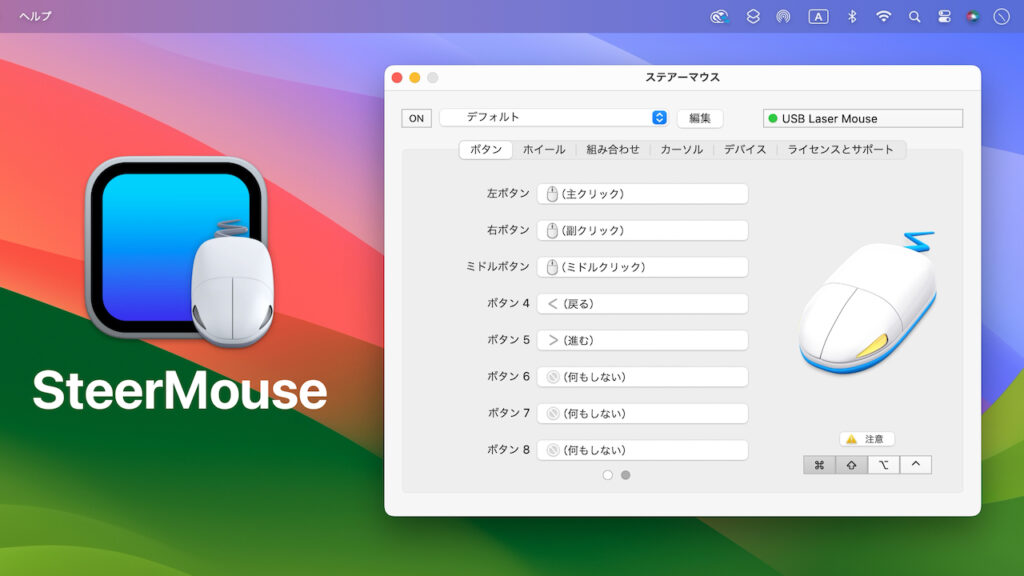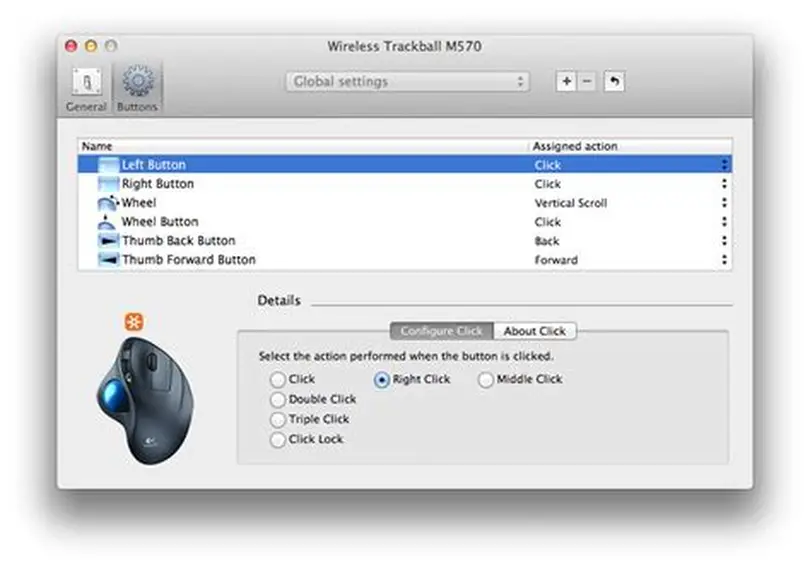
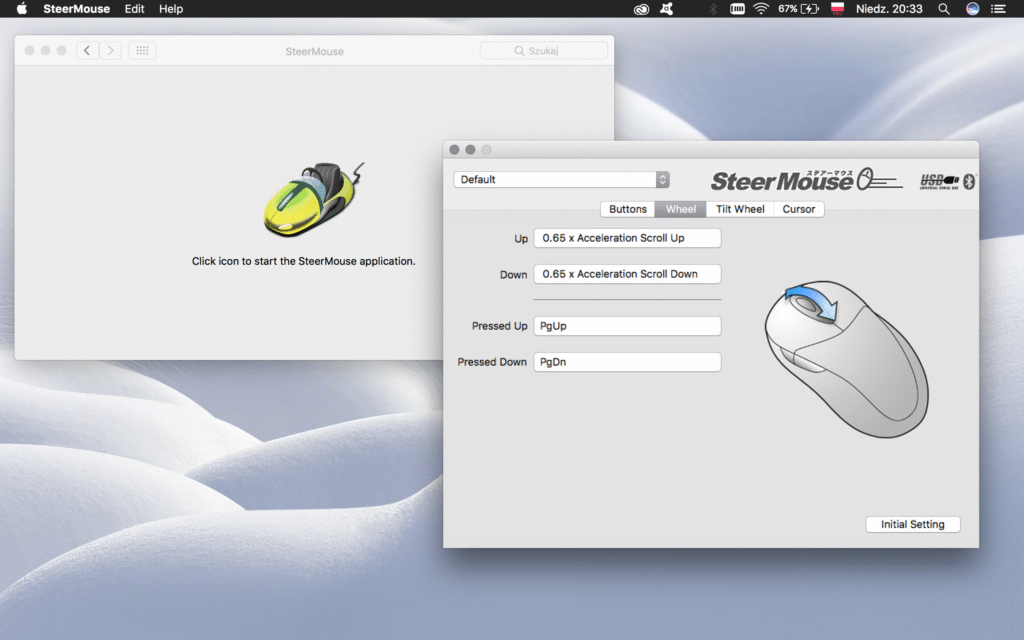
SteerMouse is a powerful macOS utility that allows advanced customization of mouse inputs, acceleration curves, button remapping, and per-application profiles. Gamers, professionals, and everyday Mac users rely on it to unlock the full potential of both standard and gaming mice. Like any other software, keeping SteerMouse updated is essential for stability, compatibility, and performance improvements. Updates often bring bug fixes, new macOS support, and refinements that enhance user experience.
As macOS continues to evolve with stricter security measures and changing driver frameworks, older versions of SteerMouse may fail to run smoothly or lose certain permissions. This makes regular updates a critical part of maintaining consistent input behavior. Whether you’re upgrading to a major macOS release or simply applying a minor bug fix, understanding the correct update process prevents profile loss and functionality issues.
This guide provides a complete, step-by-step explanation of how to update SteerMouse software, including downloading, installing, granting permissions, troubleshooting issues, and ensuring smooth migration of profiles. By following these methods, you can keep your setup secure, functional, and optimized for both gaming and productivity on macOS.
Why updating SteerMouse matters
macOS compatibility and system updates
Each new macOS release introduces changes to kernel extensions, security requirements, and accessibility frameworks. If you don’t update SteerMouse, it may stop functioning correctly after a system upgrade. For example, older versions may fail to load drivers or lose access to button mapping due to new restrictions. Keeping the software updated ensures compatibility with the latest macOS features and hardware drivers.
Bug fixes and performance improvements
Updates often fix issues such as lag, sensitivity drift, or button recognition errors. Developers continually refine the software to improve responsiveness and reduce conflicts with other input tools. Installing the latest version helps prevent frustrating interruptions during gaming, editing, or daily browsing. Performance enhancements are especially noticeable for users with high-DPI gaming mice or complex macro profiles.
Security and long-term reliability
Because SteerMouse requires accessibility and low-level permissions, outdated versions may present vulnerabilities. Updates ensure that the app complies with current macOS security policies, reducing the risk of system warnings or denied permissions. Regular updates also extend the usable lifespan of your gaming mouse, ensuring that its advanced features remain available on future macOS versions.
Step by step update process
Checking your current version
Before downloading updates, open SteerMouse from Applications or the menu bar. Go to Preferences → About SteerMouse. This will display the version number installed on your Mac. Compare this with the version listed on the official developer website to see if you need an update.
Downloading the latest release
Always download SteerMouse from the official site: plentycom.jp/en/steermouse. Avoid third-party sources, as they may provide outdated or modified versions. Once downloaded, you’ll receive a .dmg file that contains the latest installer. This ensures that you are using an authentic, secure release.
- Open the official site and check the latest version number
- Download the
.dmginstaller and verify its integrity - Save the file to your Downloads folder before installation
Installing the update correctly
Open the .dmg file and drag SteerMouse to Applications, replacing the old version. If macOS asks whether to replace the existing app, select Replace. Close any running instance of SteerMouse before installation to avoid conflicts. Once installed, restart your Mac or log out and back in so the update can fully take effect.
Managing permissions after update
Accessibility permissions
After updating, SteerMouse may lose its accessibility permission due to macOS security resets. Go to System Settings → Privacy & Security → Accessibility, unlock the padlock, and ensure SteerMouse is checked. Without this permission, remapping and cursor modifications will not function.
Input monitoring and driver approval
Some updates may trigger macOS to block SteerMouse’s driver extension. When prompted, go to System Settings → Privacy & Security → General and click Allow for the SteerMouse extension. This step ensures that the driver can properly intercept inputs.
Login items and startup settings
Occasionally, updates disable automatic startup. Open System Settings → Users & Groups → Login Items and add SteerMouse if it is missing. This guarantees that your profiles and sensitivity settings load immediately after boot, without requiring manual launch.
- Re-check Accessibility permission boxes
- Approve driver extensions under Security → General
- Re-add SteerMouse to Login Items if necessary
Troubleshooting update issues
SteerMouse not launching
If SteerMouse refuses to open after updating, first confirm that you downloaded the official installer. Next, delete the app from Applications, reinstall using the .dmg, and reboot your Mac. If the issue persists, reset your macOS security settings by re-granting Accessibility permissions.
Device not detected
After updating, some users find their gaming mouse is no longer detected. Unplug the device, test it on another port, and ensure the driver is running. Check System Settings → Privacy & Security → Input Monitoring to verify that SteerMouse is listed. If not, add it manually and restart your Mac.
Profile loss or settings reset
Sometimes updates reset or erase stored profiles. Before updating, export your profiles within SteerMouse. After reinstalling, you can import them back. If you didn’t back up, you may need to recreate profiles manually. Regular backups prevent this frustrating problem in the future.
- Delete and reinstall if app won’t launch
- Verify mouse detection in Input Monitoring
- Export/import profiles to prevent configuration loss
Best practices for smooth updates
Always back up profiles
Before applying any update, go to SteerMouse → Preferences → Export and save your profiles as a backup file. Store this file on your desktop or an external drive. After updating, you can re-import the file if settings are lost.
Disable conflicting software
Other utilities such as Logitech G Hub, Razer Synapse, or USB Overdrive may interfere with SteerMouse during updates. Close these programs before installing. If issues continue, uninstall conflicting apps temporarily to isolate the problem.
Stay informed with release notes
The official SteerMouse website provides release notes with each update. Reviewing them helps you understand new features, fixed bugs, and potential limitations. This preparation ensures smoother transitions and fewer surprises after installation.
- Export and back up all profiles before updating
- Close or uninstall conflicting input utilities
- Read release notes to understand changes
Alternatives if update fails
Reverting to an older version
If the newest update breaks compatibility with your setup, you can download an older version from the developer’s archive. Install it in the same way, then reapply permissions. This restores functionality while you wait for a newer patch.
Trying alternative drivers
Other macOS drivers such as USB Overdrive, BetterTouchTool, or Karabiner-Elements can provide partial functionality if SteerMouse refuses to work. While not as gaming-oriented, they may serve as temporary solutions until SteerMouse receives a stable release.
Contacting developer support
The SteerMouse developer provides support via email. Submitting your macOS version, mouse model, and problem description can help them provide tailored fixes. Community forums and user groups are also valuable for troubleshooting update-related problems.
FAQs
Do I need to uninstall old SteerMouse before updating?
No, you can replace the old version directly by dragging the new app into Applications. macOS will overwrite the existing version automatically.
Will updating erase my saved profiles?
Updates sometimes reset profiles. Always export profiles before updating to prevent data loss. After updating, you can import the backup file to restore settings.
Why does SteerMouse stop working after a macOS update?
macOS updates often reset accessibility and driver permissions. Re-enable them in System Settings → Privacy & Security to restore functionality.
How often should I update SteerMouse?
Check for updates every few months, or whenever you upgrade macOS. Installing updates promptly ensures better performance, bug fixes, and system compatibility.
Can I use SteerMouse updates on multiple Macs?
Yes, you can install the update on all devices where your license applies. Export your profiles from one Mac and import them on another to maintain consistency.
Conclusion
Updating SteerMouse ensures compatibility with macOS, improves performance, and safeguards against input issues. By downloading the latest version from the official website, granting permissions, and backing up profiles, you can update smoothly without losing settings. Troubleshooting steps like reinstalling, rechecking permissions, and reviewing release notes further reduce problems. Regular updates keep your gaming mice and productivity tools reliable on macOS, allowing you to enjoy consistent, customized input for every task.