SteerMouse Customize Mouse Buttons, Scroll & Speed
SteerMouse is a powerful mouse customization utility for macOS that allows users to take full control of their pointing devices. Unlike the default macOS mouse settings, which are limited in customization options, SteerMouse offers advanced features like button remapping, adjustable scroll speed, and fine-tuned cursor control.
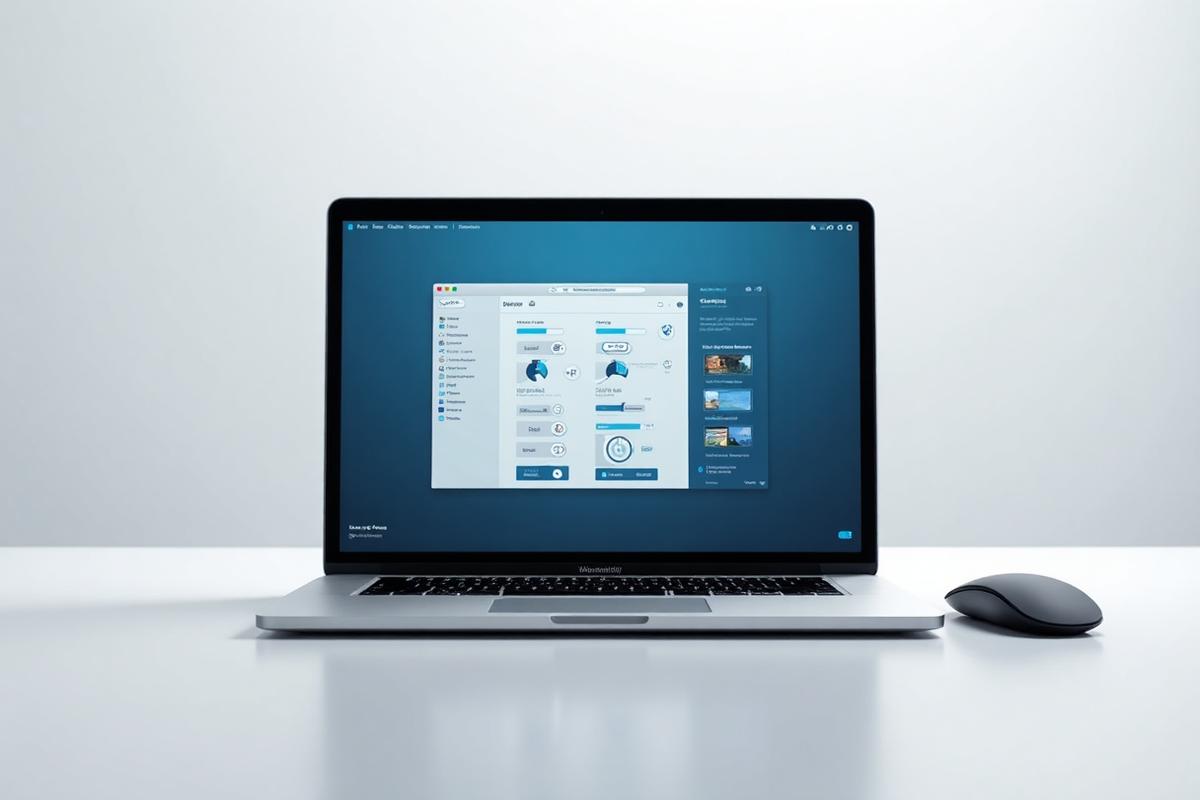
nlike the basic mouse settings in macOS, SteerMouse provides complete control over mouse buttons, scroll wheels, and pointer behavior. Its main purpose is to enhance user productivity and comfort by allowing fine-tuned customization that suits personal preferences and specific workflows.
Key Features of SteerMouse
Button Customization
Assign specific actions or shortcuts to mouse buttons for improved productivity and personalized control over your workflow.
Wheel Control
Modify scrolling speed and direction for precise navigation, making scrolling smoother and more efficient across different applications.
Pointer Control
Fine-tune cursor speed, acceleration curve, and sensitivity beyond macOS defaults.
Device Profiles
Assign unique settings for different connected mice, ensuring personalized configurations for each device you use.
Advanced Customization
Utilize modifier keys and combine commands for complex actions, enhancing productivity and functionality significantly.
Execute AppleScripts
Automate repetitive tasks by assigning AppleScripts or macros to buttons for faster, smarter workflow operations.
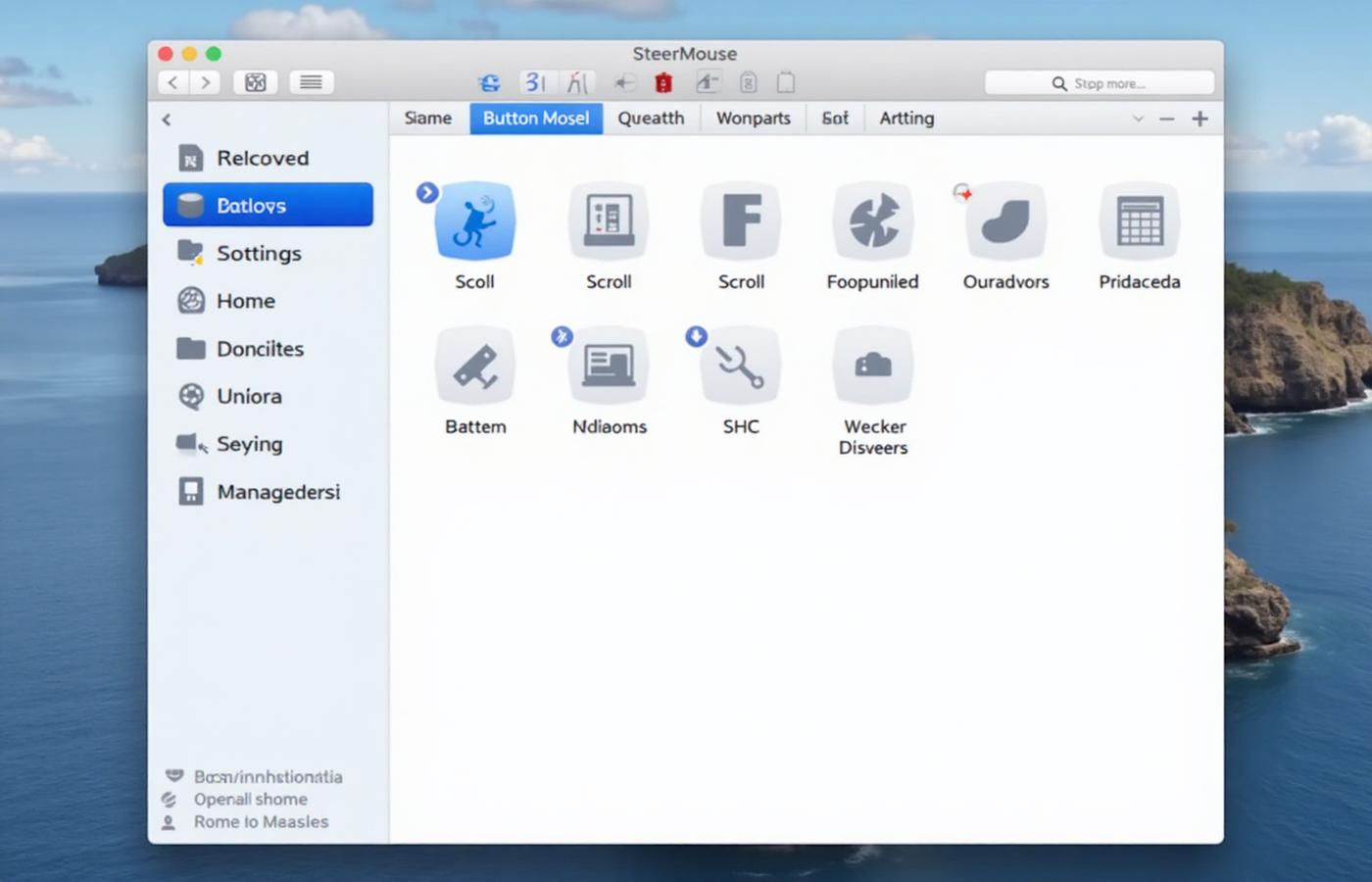
Intuitive SteerMouse Interface
Clean, modern design that makes mouse customization simple and enjoyable
Benefits of Using SteerMouse
Improved Productivity with Custom Shortcuts
SteerMouse allows you to assign custom functions to your mouse buttons, such as opening applications, executing system commands, or performing repetitive actions with a single click. This eliminates the need to use keyboard shortcuts constantly and speeds up workflows for tasks like copy-pasting, switching between applications, or performing common actions in design and office software. For professionals who rely heavily on efficiency, this customization can significantly boost productivity.
Better Gaming Control and Accuracy
Gamers often require precise control and quick access to multiple commands. SteerMouse provides fine-tuned control over cursor speed and acceleration, giving you an edge in fast-paced games. Additionally, you can map gaming functions or macros to extra mouse buttons, reducing dependency on the keyboard. This customization ensures faster reactions and smoother gameplay, which is especially important for competitive gaming.
Enhanced Comfort for Design Work
Designers and digital artists need precise cursor movements for tasks like image editing, vector drawing, and 3D modeling. The default macOS settings often lack the granularity required for such tasks. SteerMouse allows custom DPI adjustments, acceleration curves, and scroll speed control, making your mouse respond exactly as you need. This results in less strain on your hand and better accuracy for pixel-perfect designs.
Personalization Beyond macOS Defaults
macOS provides very limited options for mouse customization. SteerMouse goes far beyond these defaults by offering deep control over every aspect of your mouse, including:
- Multiple profiles for different apps
- Independent settings for scrolling speed, acceleration, and button mapping
- Modifier keys for advanced shortcuts
This level of personalization means your mouse behaves exactly how you want, whether you’re working, gaming, or browsing.
How SteerMouse Works
SteerMouse is designed to give you full control over your mouse customization on macOS. Here’s how it works step by step:
Download the Installer
- Visit the official SteerMouse website and download the latest version of the software.
Run the Installer
- Open the downloaded .dmg file and drag SteerMouse into the Applications folder.
Grant Permissions
- macOS requires user consent for input customization tools.
- Go to System Preferences > Security & Privacy > Privacy > Accessibility and allow SteerMouse.
Restart if Required
- In some cases, a restart ensures the driver is fully functional.
Interface Overview
After launching SteerMouse, you’ll see a simple control panel where you can manage all settings:
- Device List: Displays connected mice.
- Button Mapping Tab: Allows you to assign actions or shortcuts to each mouse button.
- Wheel Settings: Customize scroll speed, direction, and smoothness.
- Cursor Control: Fine-tune pointer speed, acceleration, and sensitivity.
- Application Profiles: Create different profiles for specific apps.
- Advanced Options: Configure modifier keys, macros, or scripts.
Applying and Saving Profiles
- Create Profiles: You can create multiple profiles tailored for different tasks or applications.
- Assign to Applications: Link a profile to a specific app so that when the app is active, the profile automatically applies.
- Save & Export: All profiles are saved locally, and you can export them for backup or use on another Mac.
- Quick Switching: Switch between profiles from the SteerMouse interface without restarting the app.
Compatibility & System Requirements
Supported macOS Versions
SteerMouse is designed specifically for macOS and supports a wide range of versions.
- Compatible with macOS 10.9 (Mavericks) and later.
- Fully optimized for macOS Monterey, Ventura, and Sonoma (latest versions).
- Earlier versions may have limited functionality or require older SteerMouse releases.
Supported Mouse Types
SteerMouse provides extensive support for most standard and advanced mice:
- USB Mice: Works seamlessly with wired USB mice, including basic and multi-button models.
- Bluetooth Mice: Fully compatible with Bluetooth mice, including third-party brands.
- Wireless (RF) Mice: Supported when connected via a USB receiver (dongle).
Download & Installation
Official Download Link
You can download SteerMouse directly from its official website:
- https://steermouse.com/
- Always download from the official site to ensure you get the latest and most secure version.
Installation Steps
Download the DMG File
- Visit the official site and click on the download button.
- The latest version (compatible with your macOS) will be downloaded as a .dmg file.
Open the DMG File
- Locate the downloaded file in your Downloads folder and double-click it.
- This will mount the disk image and open the SteerMouse installer window.
Drag SteerMouse to Applications
- In the installer window, drag the SteerMouse icon into the Applications folder.
Grant Permissions
- After installing, go to System Preferences > Security & Privacy > Accessibility.
- Add SteerMouse to the list and grant accessibility permissions so it can control your mouse.
Restart if Needed
- Some changes require a restart for full functionality.
Initial Setup Guide
Open SteerMouse
- Launch the app from the Applications folder.
Connect Your Mouse
- Plug in your USB mouse or connect your Bluetooth mouse.
Customize Settings
- Navigate through tabs like Buttons, Wheels, and Cursor.
- Assign custom actions to buttons, adjust scroll speed, and fine-tune cursor acceleration.
Create Profiles
- Set up application-specific profiles for gaming, design, or general use.
Save and Apply
- Once satisfied with the settings, click Apply to make them active.
Loved by Professionals
Join thousands of satisfied users who have transformed their workflow
SteerMouse FAQs
Is SteerMouse free to use?
No, SteerMouse offers a free trial, but after the trial period, you need to purchase a license for continued use.
Which operating systems does SteerMouse support?
SteerMouse is compatible with macOS. The latest version supports macOS Ventura and newer versions, but check the official website for exact compatibility.
Does SteerMouse support Bluetooth mice?
Yes, SteerMouse supports both USB and Bluetooth mice.
Can I use SteerMouse with a wireless mouse?
Yes, SteerMouse works with most wireless mice that connect via USB receiver or Bluetooth.
Does SteerMouse support Apple’s Magic Mouse?
Yes, but with limited functionality compared to third-party mice. Customization options may vary.
Can I create different profiles for different applications?
Yes, SteerMouse allows you to create application-specific profiles for custom settings in different apps.
Does SteerMouse work with gaming mice?
Yes, it works with most gaming mice, allowing you to remap buttons and adjust sensitivity.
Can I adjust the scroll speed using SteerMouse?
Yes, you can customize vertical and horizontal scroll speed separately for better control.
Is SteerMouse safe to install?
Yes, SteerMouse is a trusted utility. Download it only from the official website to avoid security risks.
Does SteerMouse run in the background?
Yes, SteerMouse runs as a background service to apply your custom settings continuously.
How do I uninstall SteerMouse?
You can uninstall SteerMouse by opening the application, selecting Uninstall from the menu, or manually removing it from Applications and system preferences.
Does SteerMouse affect gaming performance?
No, SteerMouse does not affect performance negatively. It can actually improve gaming precision by allowing better DPI and button customization.
Does SteerMouse work with macOS System Integrity Protection (SIP) enabled?
Yes, SteerMouse works with SIP enabled, so you don’t need to disable it.
Can I use SteerMouse for multiple mice at the same time?
Yes, you can create separate settings for each connected mouse.
Does SteerMouse support trackpads or touchpads?
No, SteerMouse is designed for mice only, not trackpads or touchpads.
Can I use SteerMouse without an internet connection?
Yes, after installation and activation, SteerMouse works offline without issues.
Does SteerMouse offer a lifetime license?
Yes, typically SteerMouse licenses are perpetual, but check the official site for current licensing details.
How do I update SteerMouse to the latest version?
You can update it from the SteerMouse Preferences > Check for Updates section or download the latest version from the official website.
Does SteerMouse allow scripting or automation?
Yes, you can assign AppleScripts or other actions to mouse buttons for advanced automation.
Does SteerMouse allow scripting or automation?
You can download it from the official website: https://mremoteng.com/
(always use the official source).