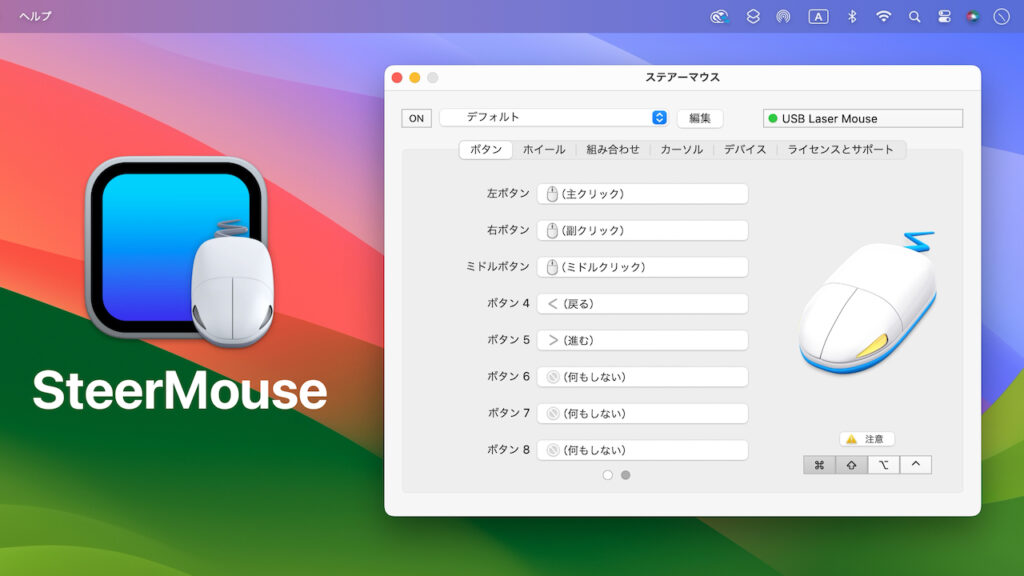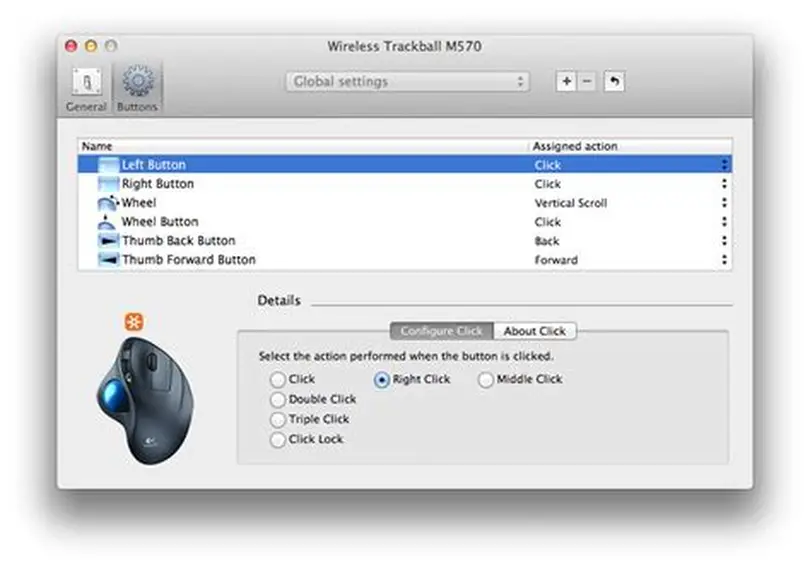
SteerMouse is a standout utility for Mac users seeking to personalize their mouse experience beyond Apple’s basic settings. Designed for USB and Bluetooth mice, it allows extensive customization of buttons, enabling users to assign complex actions, shortcuts, and system controls. This makes it a favorite among professionals, gamers, and those needing tailored workflows on macOS.
Since its launch in 2005 by Plentycom Systems, SteerMouse has evolved into a robust tool, supporting multi-button mice from brands like Logitech and Razer. Unlike macOS’s limited native controls, which focus on tracking speed and scroll direction, SteerMouse offers up to 24 actions per button, including chording with modifiers like Command or Shift. Its lightweight design ensures minimal system impact.
This article delves into SteerMouse’s button customization capabilities, exploring how it transforms mice into productivity powerhouses. From assigning shortcuts for coding to enhancing accessibility, SteerMouse adapts to diverse needs. Let’s uncover its features, setup process, and why it’s a must-have for Mac users.
Understanding SteerMouse’s Button Customization
SteerMouse’s core strength lies in its ability to remap mouse buttons with unparalleled flexibility. Supporting most USB and Bluetooth mice (excluding Apple’s Magic Mouse and Trackpad), it allows users to assign a wide range of actions, from simple clicks to complex multi-key sequences. This customization caters to professionals, creatives, and casual users alike.
Chording System Explained
SteerMouse’s chording system lets users combine buttons with modifiers (Command, Shift, Option, Control) to trigger unique actions. For example, holding a side button while pressing another can launch an app or execute a shortcut. This exponentially increases the number of possible commands, making it ideal for power users needing quick access to multiple functions.
Keyboard Shortcut Assignments
Users can map keyboard shortcuts to mouse buttons, enabling rapid execution of multi-key commands. For instance, assigning “Command + S” to a thumb button saves files instantly. This feature streamlines repetitive tasks in apps like Microsoft Word or Xcode, reducing keyboard reliance and boosting efficiency.
System and App Controls
SteerMouse allows mapping of system-level actions, such as opening Mission Control, switching apps, or controlling media playback. Users can also assign buttons to launch specific files or URLs, turning the mouse into a hub for quick navigation and control across macOS applications.
Key Features for Button Customization
SteerMouse offers a robust suite of features for button customization, making it a versatile tool for Mac users. Beyond basic remapping, it supports application-specific profiles and advanced click variations, ensuring mice align perfectly with individual workflows.
Diverse Action Types
- Click Variations: Assign single, double, or click-lock actions for dragging.
- System Navigation: Map buttons to back/forward in browsers or Mission Control.
- Media Controls: Play, pause, or adjust volume directly from the mouse.
- Custom Shortcuts: Combine multiple keys for app-specific commands.
- File/URL Launch: Open documents or websites with a single click.
Application-Specific Profiles
SteerMouse enables unique button configurations for individual apps. For example, a side button can trigger “undo” in Photoshop but open a new tab in Safari. This context-aware customization eliminates the need to reconfigure settings manually, enhancing workflow efficiency across diverse tasks.
Chording and Modifier Support
With support for up to 24 actions per button, SteerMouse’s chording system leverages modifiers to expand functionality. Users can assign different actions to the same button based on held keys, such as Shift for one command and Command for another, maximizing mouse utility.
Practical Uses of Button Customization
SteerMouse’s button customization transforms how Mac users interact with their systems, offering tailored solutions for various scenarios. From professional tasks to gaming, it enhances efficiency and comfort through personalized button assignments.
Boosting Professional Productivity
Programmers assign buttons to code navigation or debugging commands in tools like VS Code, reducing keyboard use. Office workers map app-switching or copy-paste to buttons, streamlining multitasking. This customization can save seconds per action, compounding over long workdays.
Enhancing Creative Workflows
Graphic designers map tools like the eyedropper or layer selection in Adobe apps to mouse buttons, speeding up creative processes. Video editors assign timeline navigation to side buttons, ensuring seamless edits. These tailored setups improve precision and workflow speed.
Gaming and Accessibility Applications
- Gaming Controls: Remap buttons for in-game actions, mimicking controller inputs.
- Accessibility Aids: Assign repetitive tasks to buttons for users with motor challenges.
- Web Navigation: Map forward/back buttons for browser efficiency.
- Presentation Support: Control slides or zoom during lectures.
- Ergonomic Benefits: Reduce strain with optimized button layouts.
Setting Up Button Customization
Configuring SteerMouse for button customization is straightforward, with an intuitive interface designed for ease of use. Compatible with macOS 10.13 and later, it supports most non-Apple mice, making setup accessible for a wide audience.
Downloading and Installing SteerMouse
Visit the SteerMouse website to download the installer, which includes a 30-day trial. After installation, grant macOS accessibility permissions to enable button monitoring. The app runs independently, offering a clean interface for configuration without cluttering System Settings.
Assigning Button Functions
Launch SteerMouse to access the button customization tab. Select your mouse, then choose actions from dropdown menus, such as shortcuts or system controls. Test assignments in real-time to ensure accuracy, with options to save multiple profiles for different mice.
Creating App-Specific Button Profiles
Add apps to SteerMouse’s profile list to assign unique button functions. For instance, configure a button to trigger “zoom” in Premiere Pro but “new window” in Finder. This ensures seamless transitions between tasks without manual reconfiguration.
Advantages Over Native macOS Controls
SteerMouse surpasses Apple’s native mouse settings, which lack advanced button customization. Its lightweight design, extensive feature set, and stability make it a superior choice for users seeking personalized control over their mice.
Unmatched Customization Flexibility
- Button Remapping: Assign complex actions unavailable in macOS settings.
- App-Specific Profiles: Customize buttons per app, unlike Apple’s global controls.
- Chording Support: Combine modifiers for expanded functionality.
- Click Variations: Enable drag or double-click options natively unsupported.
- System Integration: Control macOS features like Mission Control directly.
Lightweight and Reliable Performance
SteerMouse consumes minimal CPU and RAM, unlike resource-heavy alternatives like Logitech Options+. Its 20-year development ensures stability, with regular updates for macOS compatibility. Users report fewer crashes compared to manufacturer drivers, ensuring consistent performance.
Productivity and Comfort Gains
Customized button setups reduce keyboard dependency, minimizing wrist strain. Studies suggest such optimizations can cut task times by 20-30% in repetitive workflows, like coding or design. SteerMouse’s ergonomic benefits also aid users with accessibility needs.
SteerMouse vs. Alternative Tools
SteerMouse competes with tools like BetterMouse and Logitech Options+, each offering unique strengths. Understanding these comparisons helps users choose the best solution for their button customization needs on Mac.
BetterMouse Comparison
BetterMouse provides similar button remapping with a modern interface and low resource usage (50MB RAM). However, SteerMouse’s chording system and stability are preferred for complex workflows, though BetterMouse offers faster developer updates and a slightly cheaper price.
Logitech Options+ Evaluation
Logitech Options+ supports Logitech mice with smooth button mapping but is bloated and internet-dependent. SteerMouse’s cross-brand compatibility and lightweight design make it more versatile, especially for users with non-Logitech mice needing advanced customization.
Other Alternatives Overview
Free tools like Mac Mouse Fix or LinearMouse offer basic button remapping but lack SteerMouse’s depth in chording and app-specific profiles. For users prioritizing advanced features and reliability, SteerMouse’s $19.99 lifetime license remains a top choice.
FAQs
Which mice support SteerMouse’s button customization?
SteerMouse works with most USB and Bluetooth mice, excluding Apple’s Magic Mouse and Trackpad due to their gesture-based designs. Brands like Logitech, Razer, and generic devices are fully supported for button remapping.
Is SteerMouse’s button customization worth the cost?
Priced at $19.99 with a lifetime license and free updates, SteerMouse offers excellent value for users needing advanced button customization. The 30-day trial allows risk-free testing of its features.
Can SteerMouse customize buttons for gaming?
Yes, SteerMouse enables button remapping for in-game actions, simulating controller inputs. This is ideal for Mac gamers using multi-button mice, enhancing control in games like strategy or FPS titles.
Does SteerMouse support macOS Sonoma for button customization?
SteerMouse receives regular updates for compatibility with macOS versions, including Sonoma. Check the official website for the latest version to ensure seamless button customization performance.
Conclusion
SteerMouse revolutionizes mouse button customization on Mac, offering unmatched flexibility for productivity, creativity, and gaming. With chording, app-specific profiles, and lightweight performance, it transforms mice into tailored tools. Whether you’re a coder, designer, or accessibility-focused user, SteerMouse enhances workflows with precision and ease. Its $19.99 lifetime license and stability make it a top choice for Mac users seeking personalized control.