Gaming mice are engineered to deliver higher precision, more programmable buttons, adjustable DPI steps, and faster polling rates compared with standard office mice. On Windows many of these features are unlocked through manufacturer software, but macOS users often find brand tools either limited or unavailable. That leaves Mac gamers seeking third-party drivers that can expose the hardware’s full potential. SteerMouse is a well-known macOS utility that aims to fill that gap by offering deep input customization and sensitivity control.
SteerMouse focuses on input handling remapping buttons, adjusting pointer acceleration and speed, setting per-application profiles, and customizing scroll behavior. These capabilities directly affect gameplay quality consistent cursor movement, predictable aim, and immediate access to critical actions all matter for competitive and casual players alike. Because the software operates at a low level, it requires certain macOS permissions and occasional updates to remain compatible with new system releases.
This guide examines, in depth, whether SteerMouse supports gaming mice, what it can and can’t do, how to install and configure it for the best gaming results, which models work best, and what alternative options exist. Whether you have a recent flagship mouse or a multi-button MMO peripheral, you’ll learn practical steps to get maximum value from your device on macOS.
Understanding compatibility
Supported mouse brands and models
SteerMouse recognizes a wide range of mice—from mainstream gaming brands to boutique models. Popular names like Logitech, Razer, Corsair, SteelSeries, Zowie, Roccat, and smaller vendor devices are generally detected. Detection focuses on input events (button presses, wheel movements, axis data) rather than brand-specific cloud features. If the mouse communicates standard HID (Human Interface Device) signals, SteerMouse will usually be able to interact with it.
Proprietary features and firmware limits
Many gaming vendors add proprietary layers on top of the HID protocol—RGB lighting, macro cloud sync, onboard macro engines, and firmware-level profile switching. SteerMouse does not emulate or replace proprietary ecosystems. That means lighting effects, synchronized RGB, and cloud-saved macros typically remain under manufacturer software control, and SteerMouse concentrates on mapping and sensitivity.
macOS version and driver stability
macOS major releases can introduce stricter driver signing and privacy changes; these sometimes require SteerMouse updates. Before upgrading to a new macOS version, confirm SteerMouse compatibility on the developer’s site. Likewise, older mice may need firmware updates (if provided by the manufacturer) to behave predictably. Keeping both macOS and SteerMouse current reduces the chance of sudden incompatibilities.
Installing and setting up SteerMouse for gaming mice
Download and installer basics
Always download SteerMouse from the official developer site to ensure integrity and the latest build. The installer typically comes as a DMG—open it, drag the app to Applications, then launch. macOS may warn about third-party software the first time; that’s expected for utilities that modify input behavior.
macOS permissions and accessibility
To control buttons and cursor, SteerMouse needs accessibility permissions. Path: System Preferences > Security & Privacy > Privacy > Accessibility. Unlock the padlock, add SteerMouse, and check the box. Additionally, macOS may require you to allow kernel or input extensions in the General tab if prompted. Granting these permissions is necessary for the app to intercept input events and apply custom mappings.
- Download the DMG from the official site and copy to Applications
- Open System Preferences → Security & Privacy and click Allow if blocked
- Grant Accessibility access and restart the app to apply changes
Verifying device detection and basic setup
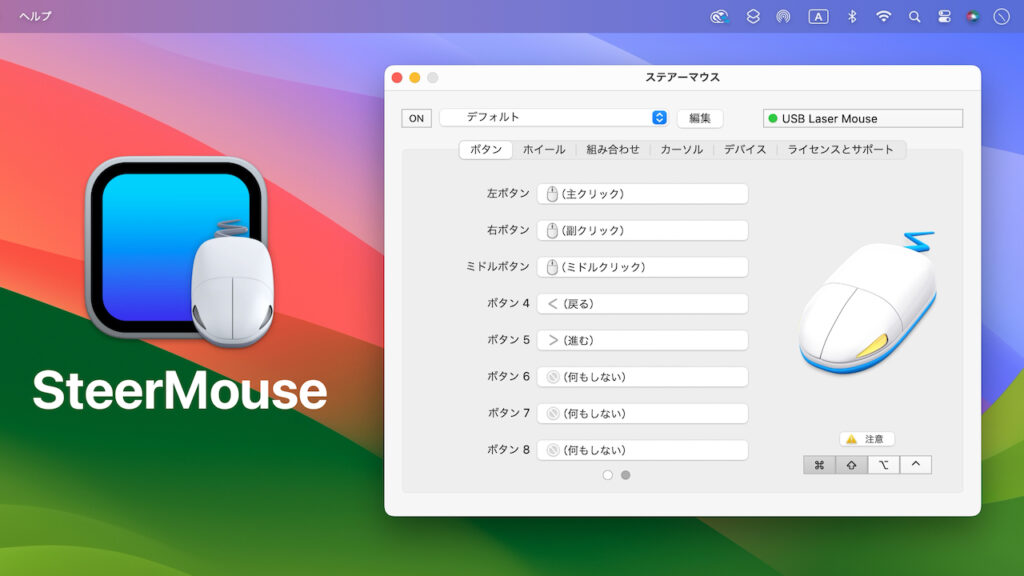
Plug your gaming mouse (or pair it via Bluetooth/dongle) and open SteerMouse. The device should appear in the device list with a visual map of buttons. If it doesn’t: try another USB port, recharge the mouse, or restart macOS. After detection, set a baseline profile—choose pointer speed, acceleration behavior, and assign a couple of test button remaps to confirm the app can send the expected keyboard/mouse events in and out of games.
Customization capabilities
Button remapping and macros
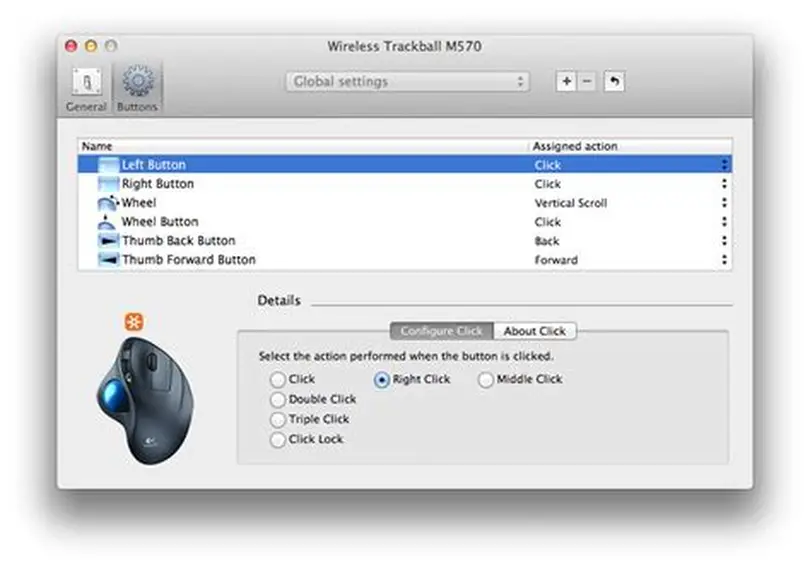
SteerMouse lets you assign nearly any system or keyboard action to a physical button: modifiers, shortcuts, multimedia, and macros. For MMO players this means multi-key rotations mapped to side buttons; for FPS players, quick utility toggles (like crouch or push-to-talk) can be bound to convenient keys. Macros in SteerMouse can include delays, repeats, and sequences, though it’s essential to test them in actual gameplay to ensure timing feels natural.
DPI, acceleration, and pointer tuning
Where SteerMouse shines is cursor behavior control. You can fine-tune DPI steps (or emulate DPI changes), set acceleration curves, and remove macOS’s default acceleration for consistent movement. For competitive shooters, disabling acceleration and using fixed sensitivity yields the most predictable aim. For creatives switching between editing and gaming, multiple sensitivity levels ease the transition across tasks.
Scroll wheel, tilt, and special inputs
Beyond basic scroll speed, SteerMouse supports tilt wheel functions and can map wheel tilt to horizontal scrolling, tab switching, or custom actions. Some high-end mice expose additional axes (tilts, extra scrolls) which SteerMouse will typically read as HID inputs — enabling creative repurposing of underused hardware controls for in-game shortcuts or UI navigation.
Specific Gaming advantages
Improved aiming and movement consistency
By removing or customizing macOS acceleration and offering precise sensitivity controls, SteerMouse helps create a consistent input environment. This is invaluable for aiming in shooters where muscle memory and predictable cursor response are key. Once you settle on a sensitivity and curve, small micro-adjustments become repeatable, improving accuracy and reducing frustration.
Per-game profiles and automatic switching
You can create profiles tailored to each game: fast, low-acceleration settings for shooters; slower, macro-rich configurations for MMOs; balanced settings for strategy titles. SteerMouse supports automatic profile switching when a specific application becomes active, so you don’t have to manually toggle configurations when you switch tasks.
- Precise acceleration and DPI control
- Automatic per-game profile switching
- Mac-specific tweaks for consistent input across system updates
Practical Mac benefits for gamers
Many gaming mice have spotty macOS support from manufacturers. SteerMouse fills that gap by treating inputs generically and offering a stable interface for long-term use. For Mac-native gamers and streamers, that means fewer platform compromises and more consistent peripheral behavior without giving up the macOS ecosystem.
Troubleshooting common issues
Device not detected or disappearing
If a mouse is not detected, first isolate the issue: test the mouse on another machine, try different USB ports, test with another cable/dongle, and confirm the battery is charged for wireless units. If it works elsewhere, reinstall SteerMouse and reapply permissions. Occasionally macOS requires a reboot after granting accessibility or input extension rights.
Button mapping conflicts and manufacturer software
Proprietary vendor software (Logitech G Hub, Razer Synapse, Corsair iCUE) can compete with SteerMouse for control of the device. To avoid conflicts, uninstall or disable the brand software while using SteerMouse, or configure it to leave hardware settings to the operating system. If a specific button refuses to remap, check whether the manufacturer locked that input in firmware.
Performance lag, jitter, or sensitivity drift
Lag can be caused by background processes, USB polling mismatches, or driver conflicts. Ensure SteerMouse is the only active input driver, close heavy apps, update macOS and SteerMouse, and experiment with USB polling settings (if the mouse/dongle allows). For wireless mice, test in a low RF-interference environment and ensure fresh batteries or full charge.
- Try different USB ports and cables first
- Disable manufacturer utilities to remove driver conflicts
- Update OS and SteerMouse; reboot after changing permissions
Limitations and recommended alternatives
RGB, lighting, and ecosystem features
SteerMouse does not manage RGB lighting or full manufacturer ecosystems. If you rely on synchronized lighting across devices, you’ll still need vendor tools. That said, most gamers prioritize input behavior over cosmetics, and you can run both SteerMouse and a lighting utility if the latter does not interfere with input control.
Onboard memory and cross-platform portability
Some mice store profiles on their onboard memory. SteerMouse settings are macOS-side configurations and do not always transfer to other OSes (Windows or Linux) via the mouse’s onboard memory. If you need identical behavior across multiple systems, use the device’s onboard profile system where available, and consider storing a macOS profile in SteerMouse as a local backup.
Alternative macOS drivers and utilities
If SteerMouse doesn’t meet a specific need, alternatives include USB Overdrive, BetterTouchTool, or Karabiner-Elements (the latter is keyboard-focused but useful for complex mappings). Each has tradeoffs—USB Overdrive can be more generic, BetterTouchTool is broader (touch and gesture focused), and Karabiner is powerful for key remaps. For most gaming-centric needs, SteerMouse remains the most straightforward and robust option.
FAQs
Will SteerMouse let me change DPI on my gaming mouse?
SteerMouse can emulate DPI adjustments by altering pointer speed and acceleration at the OS level. Some mice expose hardware DPI control to macOS and can be adjusted directly, but if the device only supports DPI control via proprietary Windows software, SteerMouse will provide an OS-level approximation that often suffices for gaming.
Can I use SteerMouse alongside Logitech G Hub or Razer Synapse?
It’s possible but not recommended. Manufacturer utilities often compete for device control, leading to conflicts. If you want consistent behavior, disable or uninstall the vendor software while using SteerMouse, or configure the vendor tool to minimize its interaction with input mappings.
Is SteerMouse safe for macOS security?
Yes, SteerMouse is widely used and requires accessibility permissions to function. Always download from the official site and check the developer’s signing/certificate information. macOS will prompt when extensions or low-level access is needed; granting those permissions is required for the app to work.
My profiles disappear after reboot—how to fix?
Ensure you have saved profiles inside SteerMouse and that the app is allowed to run at login. Check System Preferences > Users & Groups > Login Items and add SteerMouse if necessary. Reapplying accessibility permissions after OS updates sometimes resets settings, so recheck permissions if profiles stop auto-switching.
Will SteerMouse reduce input lag for competitive play?
SteerMouse won’t change hardware polling rates, but by removing acceleration and providing consistent sensitivity curves, it improves perceived accuracy and consistency. Real reductions in latency require hardware/dongle changes or lower polling rates; input behavior tuning however yields more repeatable movements.
Does SteerMouse support macOS Sonoma/Monterey/Ventura?
SteerMouse maintains updates for current macOS releases, but always verify compatibility on the developer’s download page before upgrading. Community feedback and official changelogs will indicate known issues and required steps for the latest macOS versions.
Are there free alternatives?
USB Overdrive and some open-source tools can be free alternatives, but they often lack the polish or the gaming-focused controls SteerMouse provides. If budget is a factor, try the trial of SteerMouse to compare its advantages before committing to a paid license.
Conclusion
SteerMouse is a practical and powerful macOS driver for gamers who want more control over their mice. It unlocks button remapping, DPI tuning, per-app profiles, and refined scrolling while keeping installation and maintenance straightforward. Limitations include RGB control and some proprietary firmware features, but for most players SteerMouse substantially improves responsiveness and customization. Install, update regularly, and adjust profiles to match each game for the best possible experience every session.