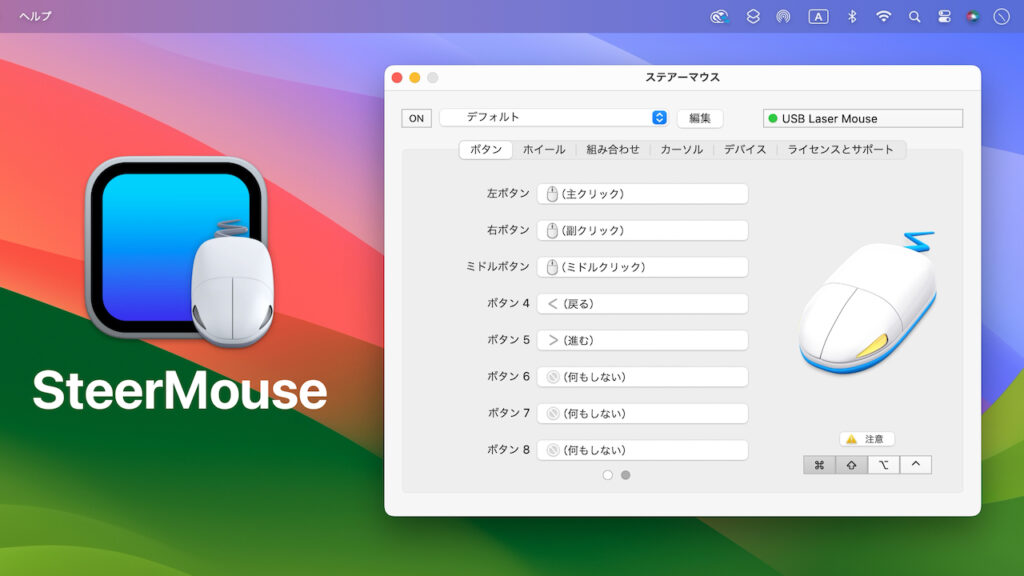
SteerMouse is a highly popular macOS driver created to give users more control over their mice. While macOS includes built-in mouse support, it lacks advanced customization options, especially when it comes to button mapping, cursor acceleration, and scrolling behavior. For professionals, gamers, and users who rely heavily on mouse efficiency, SteerMouse provides the tools to fine-tune every detail.
The installation process is not complicated, but it requires attention to detail because of macOS security frameworks. Since Apple places strict controls on third-party drivers, you must grant specific permissions during installation for SteerMouse to function properly. Many first-time users get confused when they see security prompts, accessibility requirements, or blocked extensions, but these are normal and can be resolved easily.
This expanded guide explains the full installation and setup of SteerMouse, from downloading it safely to unlocking advanced features. Along the way, you’ll find troubleshooting advice, maintenance practices, and frequently asked questions, so you can get the best out of your mouse setup. By the end, you will have complete confidence in installing, running, and customizing SteerMouse for your workflow.
Downloading SteerMouse
Official Website Access
The most important first step is downloading SteerMouse directly from the official developer’s website. Unlike casual applications, mouse drivers require stability and trustworthiness. Downloading from third-party sites may expose your Mac to outdated builds, corrupted files, or even malware. By using the official source, you ensure you get the latest version that supports current macOS updates.
Checking Compatibility
Before downloading, confirm whether your version of macOS is supported. SteerMouse updates frequently to maintain compatibility with new system releases like macOS Ventura, Monterey, or Sonoma. If you’re running an older version such as High Sierra or Mojave, check the developer’s compatibility notes on the download page to make sure your Mac can still run the driver.
Stable Internet Connection
Although the SteerMouse installer is relatively small (a few megabytes), it’s best to download with a reliable connection. Interrupted downloads may result in incomplete files, leading to installation errors. Always verify that the downloaded DMG file is intact before attempting installation.
Installing SteerMouse
Opening the Installer
Once the DMG file finishes downloading, open your Downloads folder and double-click it. You’ll see a SteerMouse icon that needs to be dragged into the Applications folder. This ensures that macOS recognizes it as an official application instead of a temporary file.
Security Permission Setup
When you first try to open SteerMouse, macOS may block it because it comes from an “unidentified developer.” This is common with third-party drivers. To proceed:
- Go to System Preferences > Security & Privacy > General.
- Look for the message stating that SteerMouse was blocked.
- Click Allow to authorize it.
This step confirms that you trust the developer and allows SteerMouse to run normally.
Granting Accessibility Access
SteerMouse requires accessibility permissions so that it can remap buttons and control advanced mouse functions. To grant these permissions:
- Navigate to System Preferences > Security & Privacy > Privacy tab.
- Select Accessibility from the sidebar.
- Click the lock icon to make changes, enter your password, then check the box next to SteerMouse.
Once enabled, SteerMouse gains the ability to interact with input devices beyond default macOS limitations.
- Drag app into Applications folder
- Allow in Security & Privacy settings
- Grant Accessibility permissions
Configuring SteerMouse
Button Remapping
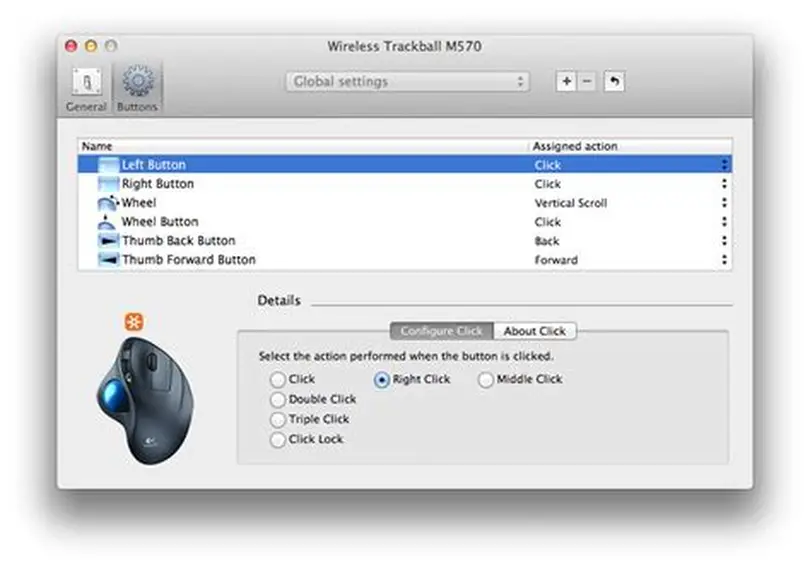
One of the biggest advantages of SteerMouse is button remapping. Instead of being stuck with the factory settings of your mouse, you can assign custom commands. For example:
- Assign Command + C to a side button for instant copying.
- Use another button for Mission Control to switch desktops quickly.
- Configure middle-click for application launching.
This level of customization can save time and improve productivity, especially for power users.
Cursor Movement Adjustments
By default, macOS uses simple acceleration and speed settings for cursor movement. SteerMouse allows much finer control:
- Adjust sensitivity for pixel-perfect precision in design software.
- Lower acceleration for stable gaming movement.
- Increase responsiveness for multi-monitor setups.
These options help you strike the right balance between speed and accuracy.
Scrolling Enhancements
Scrolling is another area where SteerMouse excels. You can adjust scrolling speed, reverse direction, and even enable smooth scrolling. For instance:
- Graphic designers may prefer slower scrolling for precision editing.
- Office users can increase scrolling speed for browsing large documents.
- Gamers can customize scroll wheel response for weapon switching or menu navigation.
Troubleshooting SteerMouse Installation
App Not Opening
Sometimes SteerMouse won’t launch after installation. In this case, revisit System Preferences > Security & Privacy > General and confirm that the app is authorized. Restarting your Mac can also help apply permission changes.
Mouse Not Recognized
If your mouse isn’t detected, disconnect and reconnect it. Try switching USB ports or turning Bluetooth off and on. Restart SteerMouse after reconnecting the device. In rare cases, updating macOS to the latest version helps resolve recognition issues.
Conflicts With Other Drivers
If you already have third-party mouse drivers installed, such as Logitech Options or Razer Synapse, they may conflict with SteerMouse. The best practice is to uninstall or disable other drivers before using SteerMouse to ensure stable performance.
- Check Security settings
- Reconnect mouse device
- Remove conflicting drivers
Updating and Maintaining
Checking for Updates
SteerMouse is updated frequently to fix bugs and maintain macOS compatibility. Open the app and use the Check for Updates option to ensure you’re always running the latest version.
Reinstalling if Necessary
If problems persist, uninstalling and reinstalling can often solve the issue. Simply drag SteerMouse from the Applications folder into the Trash, empty it, restart your Mac, then reinstall a fresh copy from the official website.
Backing Up Settings
If you’ve spent time customizing button mappings and sensitivity, it’s wise to back up your configuration files. This allows you to restore settings quickly after reinstalling or moving to a new Mac.
Advanced Features
Per-Application Settings
A standout feature is per-application customization. You can create profiles that automatically activate when launching specific apps. For example:
- A video editor can use one profile in Final Cut Pro with precise scrolling and shortcut bindings.
- A gamer can switch to a high-sensitivity setup in Minecraft or CS:GO.
- A casual user can have a simplified profile for everyday browsing.
Wheel Tilt Customization
Some mice include a tilt wheel for horizontal scrolling. SteerMouse lets you repurpose tilt actions for shortcuts like switching tabs, adjusting volume, or launching utilities. This flexibility enhances efficiency for users with multi-functional mice.
Gaming Optimization
Although macOS is not as gaming-focused as Windows, SteerMouse still provides gamers with valuable features like low-latency input adjustments and custom DPI settings. Gamers who rely on precision movements benefit greatly from these customizations.
- Unique per-app profiles
- Tilt wheel customization
- Gaming sensitivity tuning
FAQs
Is SteerMouse free to use?
SteerMouse offers a free trial, but after the trial ends, you must purchase a license to continue using all features.
Does SteerMouse support all mouse brands?
SteerMouse works with most USB and Bluetooth mice, but some proprietary devices may have limited support. Always check the developer’s compatibility list.
How do I uninstall SteerMouse?
You can uninstall SteerMouse by dragging it to the Trash or using the built-in uninstall option within the app. Restart your Mac afterward.
Can I use SteerMouse on multiple Macs with one license?
Licensing is generally per user, but policies may vary. Check the official licensing terms before installing on multiple devices.
Will updating macOS break SteerMouse?
Major system updates can temporarily disable SteerMouse until a compatible update is released. Always check the official site after upgrading macOS.
Conclusion
SteerMouse is one of the most effective tools for enhancing mouse functionality on macOS. By following the step-by-step installation process—downloading from the official source, granting permissions, and configuring advanced settings—you can unlock powerful features that macOS alone cannot provide. Whether you need precise cursor control, custom button mapping, or enhanced scrolling, SteerMouse offers full flexibility. Regular updates, proper maintenance, and troubleshooting awareness ensure that the software continues working smoothly across macOS versions, giving users a fully optimized and personalized mouse experience.