Mac computing, users often seek tools to personalize their experience beyond Apple’s streamlined ecosystem. SteerMouse, a robust third-party utility, addresses this by transforming how USB and Bluetooth mice function on macOS. Designed for those who crave precision and efficiency, it allows extensive customization of mouse buttons, scrolling, and cursor behavior, far surpassing Apple’s native settings.
Since its debut in 2005 by Plentycom Systems, SteerMouse has become a go-to for professionals, gamers, and accessibility-focused users. Unlike macOS’s limited mouse controls, which cap at tracking speed and scroll direction, SteerMouse supports multi-button mice from brands like Logitech and Razer, enabling tailored workflows. Its lightweight design and lifetime license make it a staple for Mac enthusiasts.
This article explores SteerMouse’s core uses, from boosting productivity to enhancing creative tasks. Whether you’re a designer assigning shortcuts to buttons or a coder streamlining navigation, SteerMouse adapts your mouse to your needs. Let’s dive into its features, setup, and why it’s a game-changer for Mac users.
SteerMouse’s Purpose
SteerMouse serves as an advanced mouse driver, filling gaps in macOS’s native support for non-Apple peripherals. It empowers users to customize multi-button mice, offering functionality that aligns with diverse workflows. From programmers to artists, it caters to anyone needing more than basic mouse control.
Enhancing Productivity
Professionals rely on SteerMouse to streamline repetitive tasks. By assigning shortcuts to mouse buttons, users can execute commands like copy-paste or app-switching without keyboard reliance. This reduces workflow friction, saving time in high-pressure environments like offices or studios.
Supporting Creative Workflows
Graphic designers and video editors benefit from SteerMouse’s precision. Mapping tools like zoom or undo to buttons speeds up navigation in apps like Photoshop. This customization ensures creative tasks flow seamlessly, enhancing output quality and efficiency.
Improving Accessibility
For users with motor challenges, SteerMouse’s hands-free scrolling and cursor snapping make Mac usage more inclusive. These features allow easier navigation, reducing physical strain and enabling comfortable interaction with macOS for extended periods.
Key Features of SteerMouse
SteerMouse’s strength lies in its versatile feature set, transforming any compatible mouse into a powerful tool. It supports up to 24 actions per button, cursor fine-tuning, and app-specific profiles. Here’s how these features elevate the Mac experience.
Button Customization Options
- Chording System: Combine buttons with modifiers (Command, Shift) for complex actions.
- Keyboard Shortcuts: Assign multi-key sequences to a single button for quick execution.
- System Controls: Map navigation, Mission Control, or media playback to buttons.
- App Launching: Open files or URLs directly from mouse clicks.
- Click Variations: Enable double-click, click-lock, or drag for specialized tasks.
Cursor Control Capabilities
SteerMouse offers granular cursor adjustments, ideal for precision work. Users can tweak sensitivity and acceleration curves, ensuring smooth pointer movement. The cursor snapping feature moves the pointer to dialog buttons or window edges, with optional auto-click for efficiency.
Scroll and Zoom Functions
- Adjustable Sensitivity: Fine-tune vertical and horizontal scroll speeds.
- Auto Scroll: Enable hands-free scrolling for long documents or web pages.
- Trackball Support: Convert trackball movement into scrolling for ergonomic use.
- Zoom Options: Simulate pinch gestures or trigger screen magnification.
- Acceleration Settings: Speed up scrolling for faster navigation through content.
Practical Applications for Mac Users
SteerMouse’s versatility shines across various use cases, making it invaluable for diverse Mac users. It transforms generic mice into specialized tools, enhancing efficiency in professional, creative, and casual settings.
Professional Work Environments
Programmers and office workers use SteerMouse to assign coding shortcuts or app-switching to buttons, reducing keyboard dependency. For example, mapping “Command + T” to a thumb button opens new browser tabs instantly, boosting multitasking efficiency.
Creative and Design Tasks
Designers leverage SteerMouse to map tools in Adobe apps, like the eyedropper or brush size, to side buttons. Video editors assign timeline scrubbing to the scroll wheel, streamlining edits. This customization saves seconds per action, compounding over long projects.
Gaming and Accessibility
- Gaming Enhancements: Remap buttons for in-game actions, mimicking controller inputs.
- Accessibility Features: Hands-free scrolling aids users with motor limitations.
- Web Navigation: Assign forward/back buttons for browser ease.
- Presentation Control: Map slide navigation for teachers or presenters.
- Ergonomic Benefits: Reduce strain with optimized button layouts.
Install and Configure SteerMouse
Setting up SteerMouse is simple, with an intuitive interface for customization. It requires macOS 10.13 or later and supports most USB/Bluetooth mice, excluding Apple’s Magic Mouse/Trackpad. Here’s how to get started.
Downloading and Installing
Visit the official SteerMouse website to download the installer, offering a 30-day trial. After installation, grant accessibility permissions in macOS System Settings to enable button monitoring. The app runs independently, not within System Preferences.
Configuring Mouse Settings
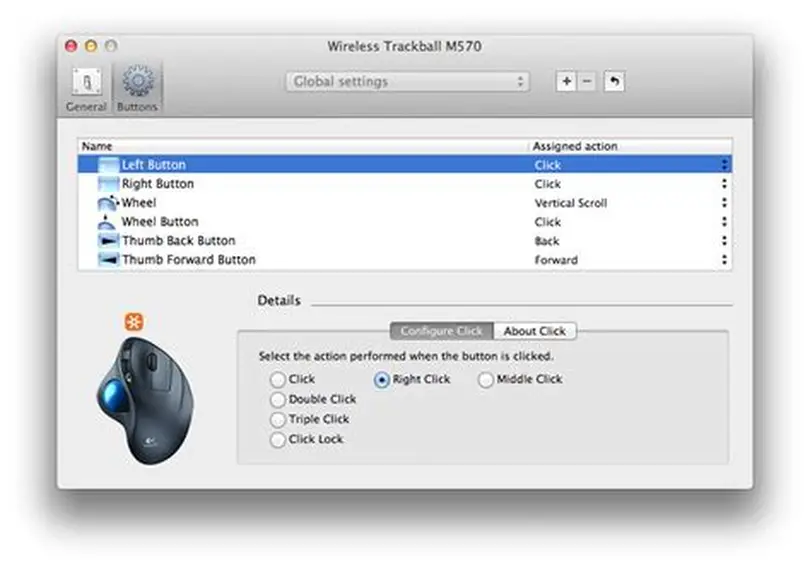
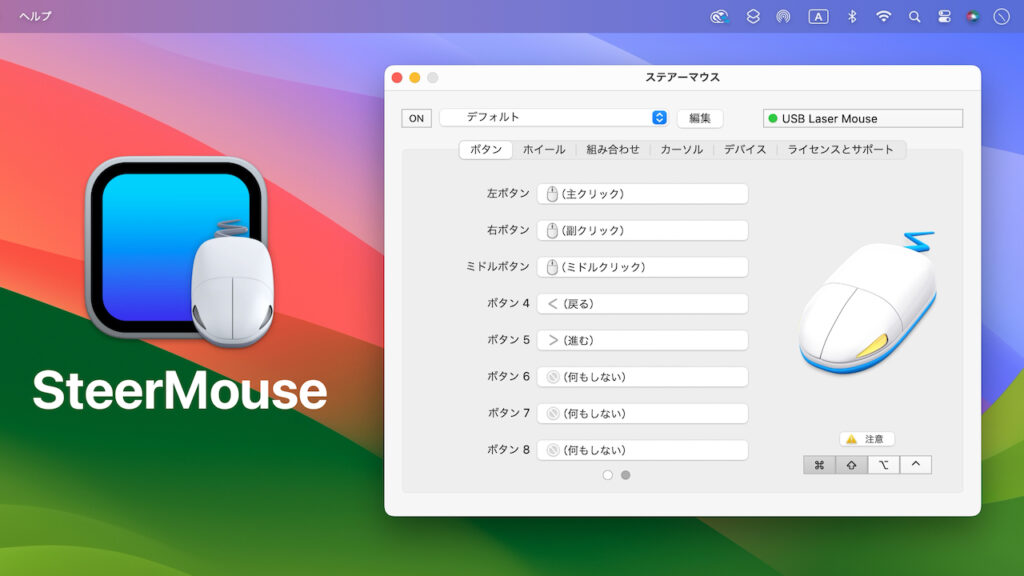
Launch SteerMouse to access tabs for buttons, cursor, and scroll. Select your mouse, then assign actions via dropdowns. Test settings in real-time to ensure accuracy. Save profiles for seamless switching between configurations.
Application-Specific Profiles
Add apps to SteerMouse’s list to create unique profiles. For instance, set different button functions for Safari versus Photoshop. This ensures context-specific controls, enhancing workflow efficiency without manual adjustments.
Benefits Over macOS Native Settings
SteerMouse outshines Apple’s built-in mouse controls, which lack depth for multi-button devices. Its lightweight design, stability, and extensive customization make it a superior choice for power users and casuals alike.
Superior Customization Depth
- Button Mapping: Unlike macOS’s basic settings, SteerMouse supports complex chording.
- Per-App Profiles: Customize settings for individual apps, unavailable natively.
- Cursor Precision: Fine-tune sensitivity beyond Apple’s tracking slider.
- Scroll Flexibility: Adjust scroll behavior for specific tasks.
- Trackball Support: Emulate scrolling, absent in macOS defaults.
Lightweight and Stable
SteerMouse uses minimal CPU and RAM, unlike bloated manufacturer software. Its 20-year development ensures reliability, with regular updates for new macOS versions. Users report fewer crashes compared to alternatives like Logitech Options+.
Enhanced Workflow Efficiency
By reducing keyboard reliance and optimizing mouse actions, SteerMouse boosts productivity. Studies suggest customized setups can cut task times by 20-30%, particularly in repetitive workflows like coding or design.
SteerMouse to Alternatives
SteerMouse competes with tools like BetterMouse and Logitech Options+, each with strengths and weaknesses. Understanding these differences helps users choose the best fit for their Mac setup.
BetterMouse Comparison
BetterMouse offers similar customization with a modern interface and low resource usage (50MB RAM). However, SteerMouse’s chording system is more robust, and its stability is preferred for complex workflows, though BetterMouse has faster updates.
Logitech Options+ Analysis
Logitech Options+ supports Logitech mice with smooth scrolling but is criticized for bloat and internet reliance. SteerMouse’s cross-brand compatibility and lightweight design make it more versatile for non-Logitech users.
Other Alternatives
Free tools like Mac Mouse Fix and LinearMouse offer basic remapping but lack SteerMouse’s depth. For users needing advanced features and reliability, SteerMouse remains a top paid option at $19.99 with lifetime updates.
FAQs
What mice are compatible with SteerMouse?
SteerMouse supports most USB and Bluetooth mice, excluding Apple’s Magic Mouse and Trackpad due to their proprietary gesture systems. Brands like Logitech, Razer, and generic devices work seamlessly.
Is SteerMouse worth the cost?
At $19.99 with a lifetime license and free minor updates, SteerMouse offers excellent value for power users needing advanced customization. The 30-day trial lets you test its features risk-free.
Can SteerMouse improve gaming on Mac?
Yes, SteerMouse allows button remapping for in-game actions, mimicking controller inputs. It’s ideal for Mac gamers using multi-button mice, enhancing control in supported titles.
Does SteerMouse work with macOS Sonoma?
SteerMouse is regularly updated for compatibility with new macOS versions, including Sonoma. Check the official website for the latest version to ensure smooth performance.
Conclusion
SteerMouse transforms Mac mouse usage, offering unmatched customization for productivity, creativity, and accessibility. From button remapping to precise cursor control, it empowers users to tailor their mouse to any workflow. Whether you’re a professional streamlining tasks or a gamer optimizing controls, SteerMouse delivers. Its lightweight design, stability, and lifetime license make it a must-have for Mac users seeking to elevate their experience.